
Self-Hosting Without Static IP: FreeBSD Reverse Proxy with Tailscale and Caddy
This guide explains how to set up an HTTP reverse-proxy server on a cheap VPS using Tailscale and Caddy. It's useful if you want to host websites on a home server without a static IP and without opening ports on your router. You can also use it to set up remote access to self-hosted services like Home Assistant or Nextcloud. As a bonus, Caddy automatically requests and renews SSL certificates, so all your sites will be accessible over HTTPS without any extra effort.
For the VPS, I'll use Hetzner's cheapest option (3.62 EUR/month as of March 2026) — but the setup works the same with any provider. As the OS, I'll use FreeBSD 15. Hetzner and many other VPS providers don't offer FreeBSD in their standard OS selection, but don't worry — we'll push it to the VPS in just a few minutes. If you prefer Debian, Ubuntu, or anything else, that works too: the Tailscale and Caddy parts are identical on any OS. That said, FreeBSD is a great fit for this — it's fast, stable, and ships without unnecessary bloat.
You can also check out my article on setting up a web server on FreeBSD, which works behind this reverse-proxy.
1. Deploying FreeBSD
Once your VPS is set up, enable the rescue environment in your provider's web interface.
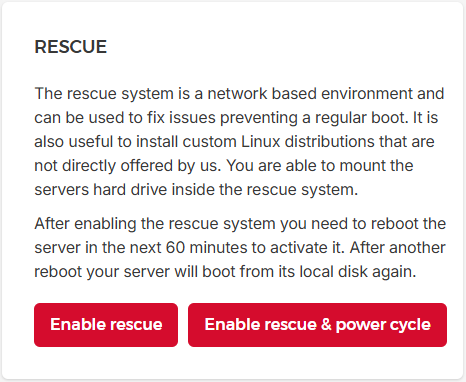
It boots a minimal rescue kernel, allowing you to modify the disk or install a custom OS. It takes a minute or two to come up. You'll be given a temporary root password.
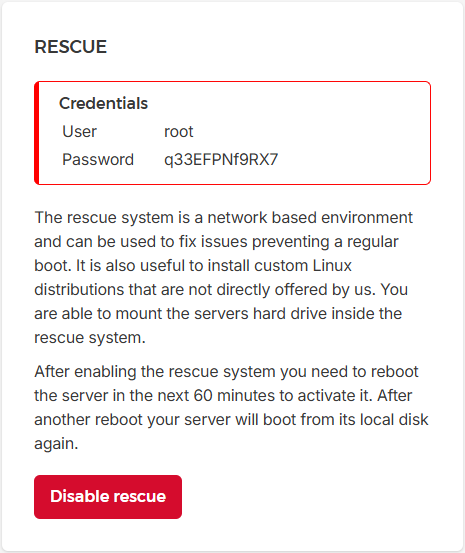
Then you can SSH in:
ssh root@server_ip
First, determine the path to your virtual disk. You can check it with lsblk — in most cases it will be /dev/sda, or /dev/vda.
Now let's write the FreeBSD image to the disk. We'll use the official FreeBSD VM cloud image — go to https://www.freebsd.org/where/ and select FreeBSD 15.0-RELEASE → VM → amd64 (or aarch64 if your VPS runs on an ARM64 CPU such as Ampere). Copy the link to the -ufs.raw.xz file.
Then in the SSH terminal run:
wget https://download.freebsd.org/releases/VM-IMAGES/15.0-RELEASE/amd64/Latest/FreeBSD-15.0-RELEASE-amd64-ufs.raw.xz # Link you copied
wipefs -a /dev/sda # Path to your virtual disk device
cat FreeBSD-15.0-RELEASE-amd64-ufs.raw.xz | xz -dc | dd of=/dev/sda bs=1M status=progress
After a minute or two the image will be written. Disable the rescue environment in your provider's web interface, then type reboot in the terminal. FreeBSD will boot up shortly after.
The root partition will automatically expand to the full disk size on first boot.
2. Configuring FreeBSD
Web Console
After reboot, the server will refuse SSH connections — sshd is not enabled in the FreeBSD cloud image by default. So the initial setup has to be done through your VPS provider's web console.
Open the web console. Default login is root with no password set. If you're on Hetzner, be careful — the web console has a keyboard mapping issue that corrupts some characters on paste (underscores become dashes, colons become semicolons, quotes get mangled) and then things mysteriously don't work. Type commands manually there rather than pasting.
Run the following:
Install a few basic utilities:
pkg install nano bash doas
Set a root password:
passwd
Create a user account:
adduser
It will ask for a username and then a series of questions. You can hit Enter through most of them, with two exceptions: when asked about additional groups, type wheel operator, and set the shell to bash.
Enable and start
sshd:
sysrc sshd_enable=YES
service sshd start
You can now close the web console and continue the rest of the setup over SSH.
SSH
Now login over SSH: ssh user_name@server_ip and type your user's password when prompted. After the login you can type su and provide root's password to continue configuring the system.
Privellege Management
Let's configure doas - a privelege management tool similar to sudo. Type:
nano /usr/local/etc/doas.conf
and add this line to the file:
permit persist :wheel
In case you are new to
nano-Ctrl+Oto save andCtrl+Xto exit.
And lock down the config file:
chmod 0400 /usr/local/etc/doas.conf
Now all users within wheel group can run a command requiring root privelleges, provide its password, and get it executed. You can test it by switching back to your user account (su user_name) and running doas whoami
Time and Other Basic Settings
Set your timezone by running
tzsetup
After you can verify time with date.
Enable NTP time sync:
sysrc ntpd_enable=YES
service ntpd start
Enable periodic SSD TRIM — useful on virtual machines or on real SSD disks.
sysrc weekly_trim_enable=YES
Set your hostname:
sysrc hostname="yourservername"
service hostname start
SSH Configuration
Edit file
nano /etc/ssh/sshd_config
Uncomment following lines and set the values as there:
PermitRootLogin no
MaxAuthTries 3
MaxSessions 3
Banner /etc/ssh/banner
You can create a fancy pre-login banner (ASCII art generators like manytools.org may be used for this):
nano /etc/ssh/banner # Paste your banner in this file
chmod 0644 /etc/ssh/banner
Customize the post-login message of the day:
nano /etc/motd.template
service motd restart
or remove it entirely:
echo "" > /etc/motd.template
service motd restart
To disable the fortune tip that prints on login, comment it out in both /.profile and /.login.
edit
nano .profile
comment line if [ -x /usr/bin/fortune ] ; then /usr/bin/fortune freebsd-tips ; fi
edit
nano .login
comment line: if ( -x /usr/bin/fortune ) /usr/bin/fortune freebsd-tips
Finally, restart SSH:
service sshd restart
Server Hardening:
By default, syslogd listens on network sockets, which is unnecessary for the setup. Restrict it by running nano /etc/rc.conf and adding following line:
syslogd_flags="-ss"
And restard syslod after:
service syslogd restart
For a kernel hardening run nano /etc/sysctl.conf and add following lines:
# Randomize PIDs to mitigate exploits
kern.randompid=1

# Protect shared memory
kern.ipc.shm_allow_removed=0

# Restrict socket visibility between users
security.bsd.see_other_uids=0
security.bsd.see_other_gids=0

# Stop ptrace attacks
security.bsd.unprivileged_proc_debug=0

# Disable unprivileged reading of kernel messages
security.bsd.unprivileged_read_msgbuf=0

# Hardlink/symlink restrictions
security.bsd.hardlink_check_uid=1
security.bsd.hardlink_check_gid=1

# Guard page
security.bsd.stack_guard_page=1

# Disable ICMP redirects
net.inet.ip.redirect=0
net.inet.ip.accept_sourceroute=0
net.inet.icmp.drop_redirect=1

# Smurf attack mitigation
net.inet.icmp.bmcastecho=0

# SYN flood prevention
net.inet.tcp.syncookies=1

# IP fingerprinting mitigation
net.inet.ip.random_id=1

# Disable TCP RST on segments to closed ports (blackholing)
net.inet.tcp.blackhole=2
net.inet.udp.blackhole=1
Apply immediately:
sysctl -f /etc/sysctl.conf
Review what services are running:
service -e
For a headless web server, you can safely disable:
sysrc mixer_enable=NO		# No audio needed
sysrc devmatch_enable=NO	 # Dynamic driver autoloading — not needed on VPS
sysrc growfs_enable=NO	   # Leftover from cloud init
sysrc growfs_fstab_enable=NO
If, in future, your VPS plan will change giving you more disk space, you can always enable growfs entries back.
Update the system:
pkg update
pkg upgrade
Installing Tailscale
Run the following commands:
pkg install tailscale
sysrc tailscaled_enable=YES
service tailscaled start
tailscale up
Tailscale will provide you a link to open in a web browser (on any machine). You need to login into your Tailscale account to add this server into your Tail network.
Configuring Firewall
We will configure pf firewall, allowing inbound connections only on port 22 (ssh), 80 (www), and 443 (ssl). All LAN and Tailscale connections will be allowed.
Check your interface name with ifconfig. On VPS it is usually vtnet0. Then run nano /etc/pf.conf, and add the following lines to the file:
ext_if = "vtnet0"   # Check your interface with ifconfig
tcp_services = "{ 22, 80, 443 }"

set block-policy drop
set skip on lo0
set skip on tailscale0

scrub in all
block all

pass out quick keep state

pass in on $ext_if proto tcp to ($ext_if) port $tcp_services flags S/SA modulate state
pass inet proto icmp all icmp-type { echoreq, unreach, timex } keep state
And enable and run pf:
sysrc pf_enable=YES
service pf start
The ssh connection will likely die at this point. Just reconnect to the server again.
Setting up Caddy web server
To install Caddy web server run the following commands:
pkg install caddy
sysrc caddy_enable=YES
Now you need to set up a hosts for Caddy. Edit the config file:
nano /usr/local/etc/caddy/Caddyfile
Here is the example configuration:
# Home Assistant instance
home.yourdomain.com {
	reverse_proxy 100.x.x.x:8123
}

# Swing Music instance
music.yourdomain.com {
	reverse_proxy 100.x.x.x:1970
}

# Personal Website
yourblog.com {
	reverse_proxy 100.x.x.x:80
}
And start Caddy:
service caddy start
Once you set up your hostnames correctly, the reverse-proxy server is ready to use! Set up Tailscale on your home server, point records in Caddy's config to its internal Tailscale IP, Caddy will issue SSL certificates and your websites will be available on the public internet.
Of course you need to point out your domains to your reverse-proxy server. Create or edit existing A records in DNS manager:
Type | host | ttl | points
A	| @	| 900 | server_ip
A	| *	| 900 | server_ip
@-record points your main domain to the server. You will need *-record if you want to point all subdomains to the VPS. Then you can just create entries like subdomain.domain.com in Caddyfile and Caddy will handle subdomains and serve different content on them.